Enter your Australia Post shipper identifier
The final step is to connect your Australia Post account to your Zonos Verified Account by adding your shipper identifier. This is what links your Australia Post shipments to Zonos for duty collection and compliance.
During initial setup, you’ll add your primary shipper identifier. You can add additional identifiers later in Dashboard → Settings.
Add your primary shipping identifier
-
On the home page of Zonos Dashboard, scroll to Enter your Australia Post shipper identifier.
-
Select your Australia Post shipper identifier type from the dropdown:
- If you have multiple shipper numbers, you need to follow these steps to create a Verified Account for each one.
- If you use Parcel Send / eParcel, enter your MLID.
- If you use MyPost, enter your APCN.
- If you use MyPost Business, enter your APBCN.
- For help finding these numbers, see the sections below.
Once saved, your account will be verified and connected to your Australia Post account automatically.
Enter your identifier number
When entering your identifier, use the correct format:
- MLID: 3–5 alphanumeric characters (uppercase).
- APCN: 10 digits only.
- APBCN: 8 digits only.
After entering the number, click Save to complete setup.
Important: Wait at least 1 hour before creating a label with this identifier to give Australia Post time to update their systems.
How to find your Australia Post shipper identifier
If you’re unsure how to find your Australia Post shipper number, follow the steps below based on your account type.
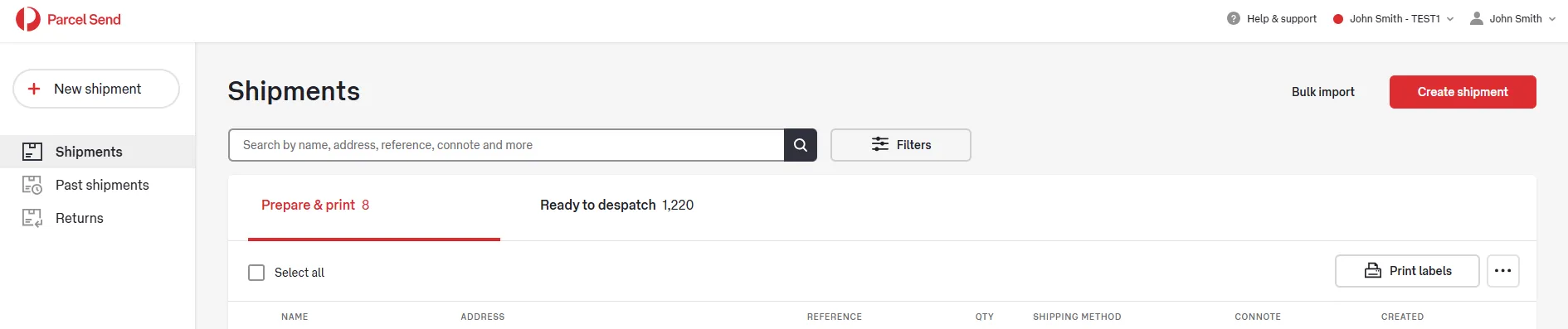
For business contract customers using Parcel Send, your Merchant Location ID (MLID) appears on the screen preceding the log-in to Parcel Send. Your MLID appears in the top right of your screen.
In this example, the account’s MLID is made up of the letters following “John Smith -” (the example account name). In the below example, the account’s MLID is “TEST1”.
Once your Zonos account is approved and a payment method is added, the connection should complete automatically. You do not need to connect the accounts yourself.
At this point, you now have a Zonos Verified Account with Australia Post.
Enter your Australia Post shipper identifier number
Connect your Australia Post account by adding your shipper identifier in Zonos.
The final step is linking your Australia Post account to your Zonos Verified Account by entering your shipper identifier (MLID, APCN, or APBCN). This identifier ensures your Australia Post shipments are associated correctly with Zonos for duty collection and compliance.